

Code Pattern Interface
This page describes how code patterns work internally as part of Keboola.
This page describes how code patterns work internally as part of Keboola.
Common Interface
Section titled “Common Interface”Code pattern is a special type of component, therefore the common interface applies to it. To integrate your own components into Keboola, use the following links:
It’s important to know that
- the component code is wrapped in a Docker image.
- each component gets a configuration file.
- the correct exit code must be used; read about return values and how to handle user and application errors.
- the Storage API token can be forwarded to the
KBC_TOKENenvironment variable.- For example, if you need to know the details about the table in the input mapping.
- It must be enabled and approved by us.
- Read more in Environment.
Code Generation Process
Section titled “Code Generation Process”This section shows how the code generation process works from start to end:
- First, there must be a published code pattern component, for example,
keboola.example-pattern. - The component must have supported transformations configured.
- For instance, it supports
keboola.snowflake-transformation.
- For instance, it supports
- Create a transformation with the code pattern in the user interface.
- Click the Generate Code button.
- User interface calls the generate action on the
keboola.example-patterncomponent. - The action finishes with the correct exit code:
- If successful:
exit code = 0- The component
stdoutcontains JSON in the output format. - The code blocks in the parameters are stored to the transformation.
- The component
- If failed:
exit code = 1 or 2- The error is processed according to the exit code.
- The previous version of the generated code remains in the transformation.
- If successful:
- The generated code is displayed read-only in the user interface.
Generate Action
Section titled “Generate Action”There are two types of component actions:
- Asynchronous, background run actions
- Synchronous actions with limited execution time
Code patterns do not implement the run action. They only implement the generate synchronous action.
The expected behavior of the generate action:
- The action is started by the Run Component Action API call.
- The
CMDprocess defined in theDockerfileis started in the container. - The component generates a transformation code based on the configuration.
- The result is written in the output format to
stdout. - The process will end successfully with
exit code = 0(or with another return value if an error occurs). - API returns the result of the action.
- The user interface modifies the transformation’s configuration and saves it.
Configuration
Section titled “Configuration”The configuration file config.json in the KBC_DATADIR contains:
actionkey set to thegeneratevalue as a name of the action to executestoragekey – contains the current input and output mapping from the transformation.- Go to Configuration File - Tables for a schema description and examples.
- Go to Overview - Input and Output Mapping for an exemplary user interface.
parameterskey – modifies the generated code._componentIdkey contains the ID of the target transformation component.- For example,
keboola.snowflake-transformation - Based on this, it is possible to customize the generated code, e.g., for various SQL dialects.
- For example,
- The other keys come from the parameters form, filled in by the user.
- The schema of the form is defined in the configuration schema.
- The values should be validated in the component’s code.
An example configuration (examples of the storage key can be found here):
{ "action": "generate", "storage": { "input": { "tables": ["..."] }, "output": { "tables": ["..."] } }, "parameters": { "_componentId": "keboola.snowflake-transformation", "form_parameter_1": "value 1", "form_parameter_2": "value 2" }}Output Format
Section titled “Output Format”The component must write the generated code to stdout in the following JSON format:
storagekey contains the new transformation’s input and output mapping.- It is optional. If absent, the mapping remains unchanged.
- It is copied into the transformation’s configuration
storagekey. - A schema and examples can be found in Configuration File - Tables.
parameterskey with the generated code- It is copied into the transformation’s configuration
parameterskey. - Schema
blocks->codes->scriptmust be used. See below. - Each statement must be a separate item in the
scriptarray.
- It is copied into the transformation’s configuration
An example configuration (examples of the storage key can be found here):
{ "storage": { "input": { "tables": ["..."] }, "output": { "tables": ["..."] } }, "parameters": { "blocks": [ { "name": "Generated block", "codes": [ { "name": "Generated code", "script": [ "CREATE TABLE table1;", "SELECT foo1, foo2 FROM table2 INTO bar;" ] } ] } ] }}Developer Portal
Section titled “Developer Portal”Each newly created component must be registered in the Keboola Developer Portal.
Start with creating a simple “Hello, World!” component. To create a code pattern component, you must take the following additional steps:
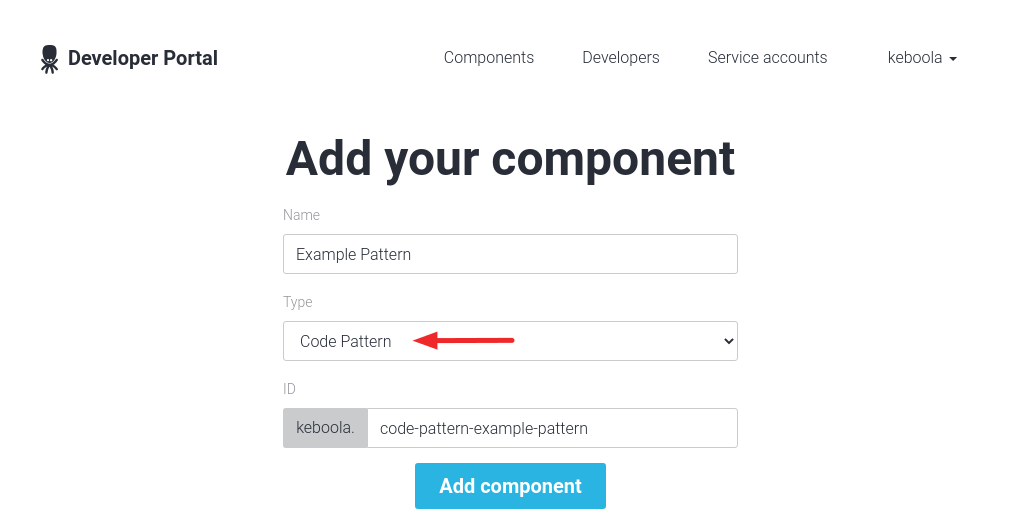
First, create a component with the Code Pattern type.
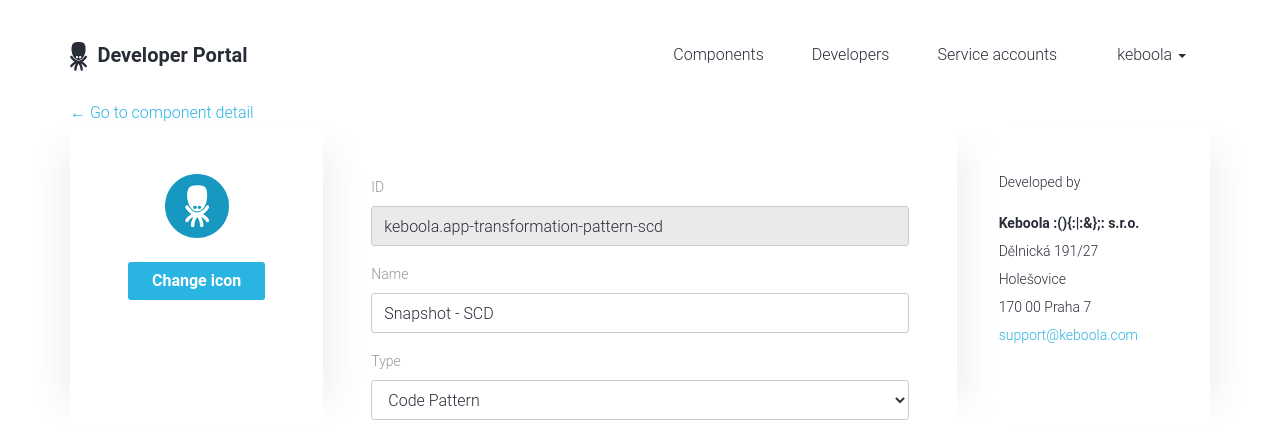
Open the component edit page, and modify the settings described in the following sections.
Configuration Schema
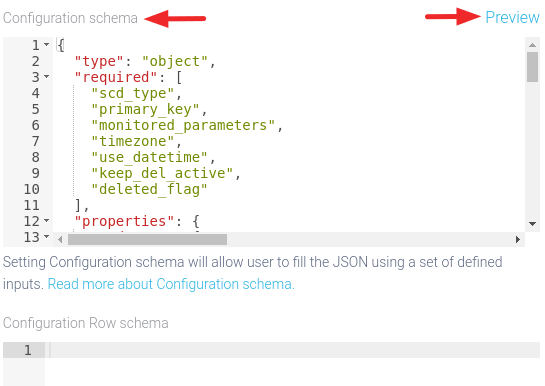
Section titled “Configuration Schema”- Parameters form in the user interface is generated from the configuration schema.
- Click the Preview button to see the preview of the form.
Supported Components
Section titled “Supported Components”Each code pattern can generate a code for one or more transformation component types.
They are specified in the configuration schema in
the root-level supported_components key, as an array of component IDs.
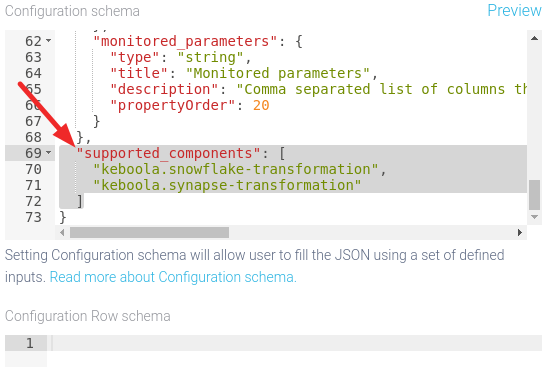
When creating one of the listed transformation components, the published code pattern will be available in the select box.
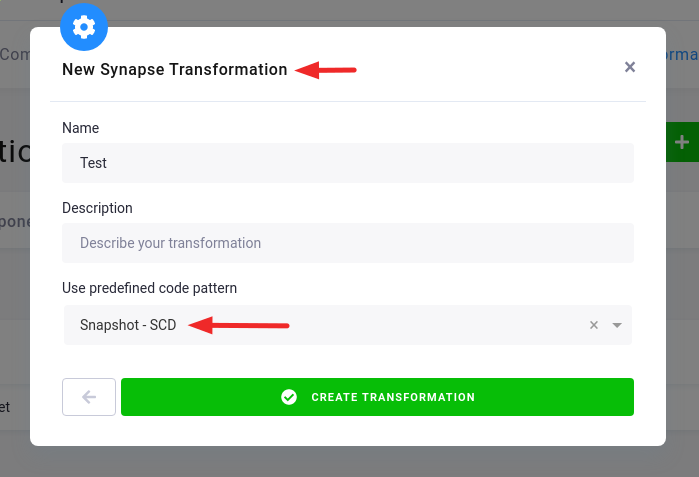
The code pattern’s configuration contains
the parameters._componentId key, so it is possible to distinguish for which transformation component the code is generated.
Next Steps
Section titled “Next Steps”- Tutorial helps you to implement your first code pattern.
- Code Patterns Help shows the code patterns from the user’s point of view.